
NetMirror Login Not Working? Troubleshooting Guide
Are you facing a NetMirror login not working problem? If you cannot sign in, the login page keeps loading, an OTP does not arrive, or you repeatedly see an error message, the issue may be related to your internet connection, browser settings, app version, or a temporary service problem.
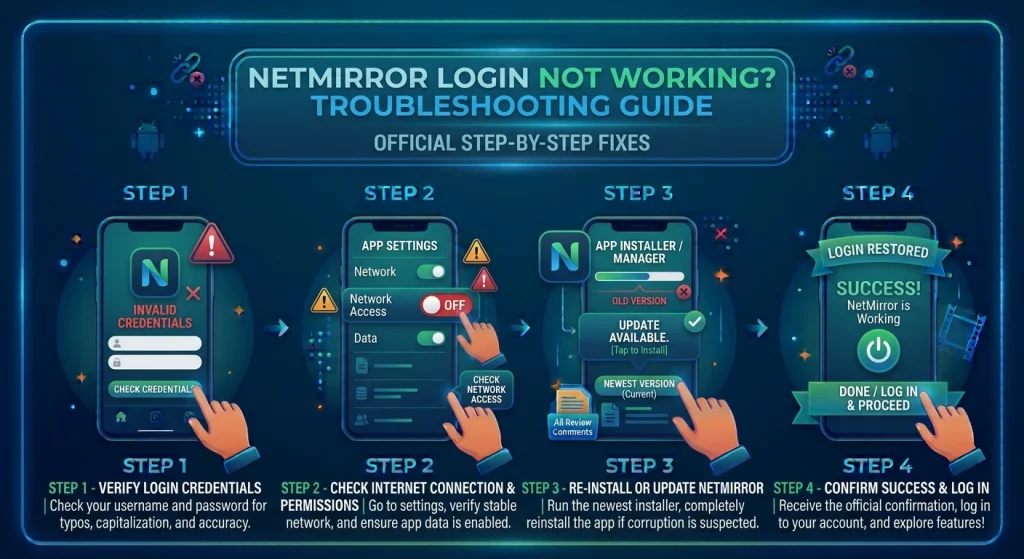
Why Is NetMirror Login Not Working?
There are several possible reasons why NetMirror may fail to log in. The exact cause depends on the version, website, or application you are using.
Common reasons include:
- Incorrect login details: The email address, password, or other required information may be incorrect.
- OTP verification problems: A verification code may be delayed or sent to your spam folder.
- Internet connection issues: An unstable connection can prevent the login page from loading.
- Browser problems: Cookies, cached files, or extensions may interfere with the sign-in process.
- Outdated application: An older app version may have compatibility problems.
- Temporary service outage: The website or its login service may be unavailable.
- Suspicious login page: An unofficial copy of a website or app may display a login form that is not associated with the service you intended to access.
Identifying the likely cause will help you choose the right solution instead of repeatedly trying to log in.
1. Check Your Internet Connection
A weak or unstable internet connection can prevent a login request from completing.
Try these steps:
- Open another website to confirm that your internet is working.
- Switch from Wi-Fi to mobile data, or try another trusted Wi-Fi network.
- Restart your router if several websites are failing to load.
- Disable airplane mode if it is enabled.
- Reopen the NetMirror page or application and try again.
If other websites work normally but NetMirror does not, the problem may be related to the service itself, your browser, or the particular website address you are using.
2. Check Whether NetMirror Requires an Account
Before troubleshooting your password, confirm that the particular NetMirror version or website you are using actually requires an account.
Different websites and app versions may offer different login experiences. Some may provide access without account registration, while others may display a sign-in screen.
If a login screen appears unexpectedly:
- Check that you opened the intended website or application.
- Review the page address carefully.
- Avoid entering credentials for other services, such as Netflix or Amazon Prime Video, into an unfamiliar login form.
- Do not provide payment details or verification codes to an unverified website.
If you cannot establish that the login page is legitimate, close it rather than continuing.
3. Verify Your Login Details
If the service you are using genuinely requires an account, incorrect credentials may be preventing you from signing in.
Try the following:
- Check your email address or username for spelling mistakes.
- Make sure Caps Lock is not enabled when entering your password on a computer.
- Check for accidental spaces before or after your login details.
- If available, use the service’s official password-reset process.
- Try signing in again after carefully entering the correct information.
Avoid making repeated login attempts if the service reports that your account is temporarily locked. Follow the displayed recovery instructions instead.
Important: Never reuse your email password or another important account password on an unfamiliar website.
4. Fix the OTP Verification Problem
If NetMirror asks for an OTP but you are not receiving it, the problem may involve email delivery, a delayed message, or an issue with the verification service.
Here are some steps to try:
- Check your spam, junk, and promotions folders.
- Confirm that you entered the correct email address.
- Wait briefly before requesting another code.
- Use the newest OTP if several codes arrive.
- Check whether the code has expired.
- If the service provides an official resend option, use it once the waiting period has passed.
If the OTP still does not arrive, stop making repeated requests and wait before trying again.
Never share an OTP with another person or enter it into an unfamiliar website. If you did not request a code, do not use it.
5. Clear Your Browser Cache and Cookies
Corrupted or outdated browser data can sometimes cause login pages to reload repeatedly, display blank screens, or fail during verification.
To troubleshoot the problem:
- Open your browser settings.
- Find the privacy or browsing-data section.
- Choose the option to clear cached files.
- If necessary, clear cookies and site data for the affected website.
- Close and reopen the browser.
- Visit the website again and try signing in.
Clearing cookies may sign you out of other websites, so make sure you know how to access your important accounts before proceeding.
You can also try opening the login page in a private or incognito window. If it works there, an extension or existing browser data may be causing the issue.
6. Try Another Browser or Device
Sometimes the problem is limited to a particular browser or device.
If NetMirror login is not working in your current browser, try a different, up-to-date browser. You can also test the page on another device you own.
Check whether:
- The browser is updated.
- JavaScript and cookies are enabled when required.
- A browser extension is blocking the login process.
- Your device’s date and time are correct.
- The login page displays an error on multiple devices and networks.
If the same error appears everywhere, the issue may be on the service’s side rather than with your device.
7. Android Help
Android users may experience problems caused by an outdated application, corrupted cache files, insufficient storage, or compatibility issues.
Try these troubleshooting steps:
Step 1: Force-stop the application
Open your phone’s Settings, select Apps, choose the relevant application, and tap Force stop if that option is available. Reopen it afterward.
Step 2: Clear the app cache
Navigate to Settings → Apps → the relevant application → Storage and cache → Clear cache. The exact menu names may differ by Android version and manufacturer.
Start with clearing the cache rather than clearing all app data.
Step 3: Check available storage
Make sure your device has enough free storage to operate normally.
Step 4: Restart your phone
Restarting the device can resolve temporary software problems.
Step 5: Review the app source
If the problem continues, check whether the application came from a trustworthy source. Avoid installing replacement APK files from random websites.
Clearing app data or reinstalling an application may remove locally stored information. Do not do so unless you understand the consequences.
8. Fix NetMirror Login Problems on iPhone
If you are accessing NetMirror through an iPhone browser, try these steps:
- Confirm that your internet connection is stable.
- Close the browser tab and reopen the website.
- Update your browser and iOS if updates are available.
- Test the page in a private browsing window.
- Review content blockers or browser extensions that may affect the page.
- Clear the relevant website data if necessary.
If the website requires a login but continues to show an error, check whether the service is available and whether the login page is legitimate.
Remember that an Android APK cannot be installed directly on an iPhone. Be cautious of websites claiming that an unfamiliar configuration profile or third-party installation is required to fix a login problem.
9. Troubleshoot NetMirror Login on PC
If you are using NetMirror through a desktop or laptop browser, try these solutions:
- Refresh the login page.
- Update your browser.
- Clear the website’s cached data and cookies.
- Temporarily disable browser extensions that may interfere with sign-in.
- Check your system’s date and time settings.
- Test another browser.
- Restart your computer if the browser is experiencing wider problems.
If the website displays a CAPTCHA, complete it only if you trust the website and the request appears legitimate.
If the login page repeatedly returns to the beginning, cookies or a failed verification process may be responsible. However, a persistent error across multiple browsers can also indicate a service-side problem.
10. Check for Temporary Server Problems
Sometimes, login problems cannot be fixed through device settings because the service itself is unavailable.
Possible signs of a service-side issue include:
- The login page fails to load on several devices.
- The same error appears on different internet connections.
- The website displays a maintenance or server error message.
- Login attempts fail even when the entered details are correct.
If you suspect an outage, wait a while and try again. Check a trustworthy service-status page or an official announcement if one is available.
Avoid downloading a replacement application or switching to an unfamiliar website simply because the original service is not working.
11. Disable Problematic Browser Extensions or Network Filters
Privacy extensions, content blockers, or network filters can occasionally interfere with website sign-in and verification scripts.
To check whether this is happening:
- Open the website in a private browsing window.
- If the login works, review the extensions enabled in your normal browser.
- Disable only the extension you suspect, then test again.
- Check whether a security filter is blocking the website.
Do not disable your antivirus software or essential security protections simply to access a questionable login page.
If your network administrator or internet provider is restricting access, follow applicable rules and use legitimate services available in your region.
12. What to Do If NetMirror Keeps Showing a Login Error
If you have tried the basic solutions and the login problem continues, use this checklist:
- Confirm that you are visiting the intended website.
- Check whether an account is actually required.
- Verify your login information if the service uses accounts.
- Check your email folders if an OTP is expected.
- Test a different browser and network.
- Clear the relevant browser cache.
- Check for service announcements.
- Avoid repeated attempts if the account is locked.
- Do not install unknown APK files or provide sensitive information to unverified websites.
If a verified support channel exists, contact it with the error message, device model, operating system, browser or app version, and approximate time of the failed attempt.
Do not include your password, OTP, payment information, or other sensitive details in a support request.
Common NetMirror Login Errors and Their Solutions
| Login Problem | Possible Cause | What to Try |
|---|---|---|
| Login page not loading | Network or server issue | Test another website and network |
| Incorrect password message | Wrong credentials | Check the username and use the official recovery option |
| OTP not received | Email delay or verification problem | Check spam and wait before requesting another code |
| Login page keeps refreshing | Cookies or browser issue | Clear relevant site data or try private browsing |
| Blank login screen | Browser compatibility or script error | Update the browser and test another one |
| App closes during login | App or device problem | Restart the device and clear the app cache |
| Login fails on every device | Possible service-side issue | Wait and check for a verified service announcement |
| Unexpected login request | Different app version or suspicious page | Verify the source before entering any information |
These are possible causes, not guaranteed diagnoses. The correct fix depends on the specific error message and the version of NetMirror you are using.
Frequently Asked Questions
Why is NetMirror login not working?
NetMirror login may fail because of an unstable internet connection, incorrect account details, browser cache problems, OTP delays, compatibility issues, or a temporary service outage. Start by checking your connection and confirming that the login page is legitimate.
Why does NetMirror keep asking me to log in?
Repeated login requests can occur when cookies are blocked, a session expires, verification fails, or the website has a technical problem. Try reopening the page, checking browser settings, and signing in again only if you trust the service.
What should I do if I do not receive a NetMirror OTP?
Check your spam and junk folders, verify your email address, and wait before requesting another code. If the problem continues, use a verified support channel if one is available.
Can clearing the cache fix NetMirror login problems?
Yes, clearing the relevant browser or application cache may help if temporary data is corrupted. However, it will not fix server outages, incorrect credentials, or an illegitimate login page.
Why is NetMirror login not working on Android?
Possible causes include corrupted app cache, an outdated application, insufficient storage, or a network problem. Force-stop the application, clear its cache, restart your device, and review the application’s source.
Why is NetMirror login not working on my PC?
Browser extensions, cookies, outdated browser software, network problems, or a service outage may prevent sign-in. Try a private browsing window or another updated browser.
Is it safe to enter my password on a NetMirror login page?
Only enter credentials when you have verified the website and understand which account the page is requesting. Never provide your password for another streaming service to an unfamiliar website, and never share your OTP.
What if none of these solutions works?
The problem may be temporary or related to the particular website or app version. Wait and try again later, check verified service announcements, or use a legitimate streaming service with an established support channel.
Final Thoughts
When NetMirror login is not working, start with the simplest checks: test your internet connection, verify the login page, check your credentials if an account is required, and clear your browser cache if necessary.
If the problem continues across different devices and networks, a temporary service issue may be responsible. In that case, waiting and checking verified announcements is more useful than repeatedly attempting to log in.
Most importantly, protect your personal information. Avoid suspicious login forms, unknown APK downloads, and requests for credentials belonging to other services. Troubleshooting should never come at the expense of your account security.