
How to Check NetMirror APK Permissions Before Installing
Before installing any APK file on your Android device, it is important to check the permissions it requests. These permissions determine what information and device features an application can access, including storage, camera, microphone, contacts, and location.
If you are planning to install NetMirror APK, reviewing its permissions can help you identify unnecessary access requests and potential privacy risks. An application that requests more permissions than its features reasonably need deserves extra attention.
In this guide, you will learn how to check NetMirror APK permissions before installing, understand what different permissions mean, identify suspicious requests, and protect your Android device.
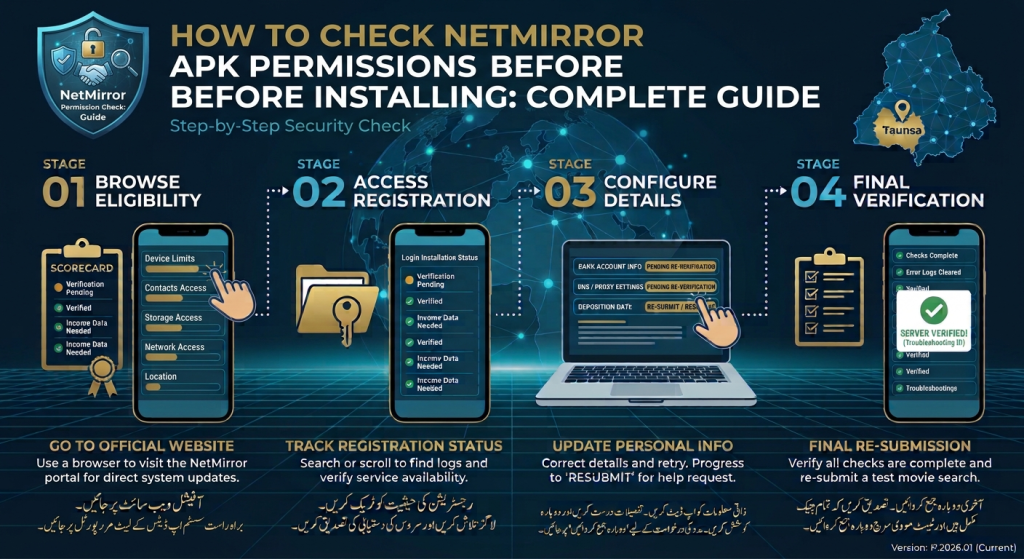
Why Should You Check NetMirror APK Permissions Before Installing?
Checking app permissions is an important security step, especially when installing applications from outside the Google Play Store.
Permissions control an application’s access to restricted device features and personal information. Some permissions are necessary for specific functions, while others may create unnecessary privacy risks.
Here are some reasons to review NetMirror APK permissions before installation:
- Protect personal information: Check whether an app requests access to contacts, messages, or other private information.
- Protect your privacy: Identify unnecessary camera, microphone, and location access.
- Avoid suspicious applications: Excessive or unrelated permission requests can be a warning sign.
- Understand app access: Know what an application may be able to access after installation.
- Make informed decisions: Decide whether the requested permissions are reasonable before proceeding.
Android provides permission controls to help users manage access to sensitive information and device features.## How to Check NetMirror APK Permissions Before Installing
How to Check NetMirror APK Permissions Before Installing
There are several ways to review an APK’s permissions. The available options depend on your Android version, device manufacturer, and the APK installation method.
1. Check the APK Download Source
Before examining permissions, consider where the APK file comes from.
Follow these precautions:
- Identify the website or source providing the APK.
- Check whether the source provides clear developer and application information.
- Look for a privacy policy and contact information.
- Avoid websites that display misleading download buttons.
- Do not install files from unfamiliar links or suspicious advertisements.
A website claiming that an APK is safe does not prove that the file is trustworthy.
2. Review Available App Information
Some download sources and Android installation interfaces display application information before installation.
Check whether the available details include:
- Application name.
- Developer or publisher.
- Version number.
- Requested permissions.
- Package information, when available.
If the information is missing or inconsistent, treat the file cautiously.
Important: Android does not display a complete permission list in every standard APK installation screen. You may need a trusted APK inspection tool to examine the package before installing it.
3. Use a Trusted APK Permission Checker
A reputable APK analysis tool can help inspect an APK file without installing it.
A typical inspection process looks like this:
- Download the APK only from a source you can verify.
- Open a reputable APK inspection tool.
- Select the downloaded APK file.
- Find its permissions or manifest information.
- Review the requested permissions.
- Look for permissions unrelated to the application’s stated features.
- Avoid installation if the file appears suspicious.
Choose inspection tools carefully. Some third-party APK analyzers may upload files to external servers, so review their privacy policies before using them.
4. Check Permissions After Installing
If you have already installed an application from a source you trust, Android allows you to review and manage its permissions.
Follow these general steps:
- Open Settings on your Android device.
- Select Apps or App Management.
- Find and select NetMirror.
- Tap Permissions.
- Review the allowed and denied permissions.
- Check whether any requested access appears unnecessary.
Menu names may vary depending on your Android version and phone manufacturer.
You can also review permissions through the Android Privacy Dashboard or Permission Manager, where available.
5. Check Special App Access
Some Android permissions are more powerful than ordinary runtime permissions.
Examples include:
- Accessibility access.
- Display over other apps.
- All files access.
- Notification access.
- Device administrator privileges.
- Usage access.
These settings can provide broader access to device functions or information. An ordinary media-streaming application should have a clear reason for requesting any particularly powerful permission.
Do not grant special access simply because an application asks for it.
Common Android Permissions and What They Mean
Understanding permission names makes it easier to identify unnecessary access requests.
| Permission | What It Allows | What to Check |
|---|---|---|
| Internet | Connect to online services | Whether online access is relevant |
| Network State | Check network connectivity | Whether internet-related features need it |
| Storage or Media | Access certain files or media | Whether the requested access is necessary |
| Camera | Capture images or video | Whether camera functionality is offered |
| Microphone | Record audio | Whether voice or recording features exist |
| Location | Access approximate or precise location | Whether location is genuinely required |
| Contacts | Access saved contacts | Why a media app would need this |
| SMS | Read or send text messages | Treat unrelated requests as a serious warning |
| Phone | Access certain phone-related information or functions | Check the exact permission requested |
The exact permission names and access levels depend on Android versions. Some permissions are grouped or handled differently by newer Android releases.
Which NetMirror APK Permissions May Be Suspicious?
Not every permission is dangerous, but some requests deserve additional scrutiny when they do not match an application’s stated purpose.
1. Contacts Permission
Contacts access allows an application to access information about people saved on your device.
If an application is primarily used for media playback, ask why it needs access to your contacts.
2. SMS Permission
SMS permissions can provide access to sensitive messages or messaging functions.
An application that does not offer a relevant messaging feature should have a clear explanation for requesting this access.
3. Microphone Permission
Microphone access can allow an application to record audio when permission is granted and the relevant feature is used.
If an application does not provide voice or recording features, consider whether this permission is necessary.
4. Camera Permission
Camera access may be appropriate for an application with scanning or video-capture features.
However, if the application does not offer such functionality, the request deserves further investigation.
5. Location Permission
Location access can reveal information about your approximate or precise location.
Check whether the application has a genuine location-based feature before allowing this access.
6. Accessibility Permission
Accessibility access can be particularly powerful because it may allow an application to observe or interact with parts of the device interface.
Do not grant this access to an unfamiliar application unless you understand exactly why it needs it.
Remember: A suspicious permission request does not automatically prove that an application contains malware. However, unrelated access requests are a reason to stop and investigate.
How to Manage NetMirror Permissions on Android
If NetMirror is already installed, you can control many permissions through Android settings.
Step 1: Open App Settings
Open Settings and navigate to Apps or App Management.
Step 2: Select NetMirror
Find NetMirror in the installed application list and open its App Info page.
Step 3: Open Permissions
Tap Permissions to see the categories of access requested by the application.
Step 4: Review Each Permission
Check which permissions are allowed, denied, or restricted.
Step 5: Remove Unnecessary Access
If a permission is not needed for a feature you use, you can deny or revoke it.
Keep in mind that some features may stop working when their required permissions are denied.
For more information, read Google’s official guide to managing app permissions on Android.
How to Protect Your Device Before Installing NetMirror APK
Checking permissions is only one part of APK security. Follow these additional precautions before installing any application from outside an official app store.
Keep Google Play Protect Enabled
Google Play Protect checks applications for potentially harmful behavior, including apps installed from sources outside Google Play.
To review its settings:
- Open Google Play Store.
- Tap your profile icon.
- Select Play Protect.
- Open Play Protect Settings.
- Make sure app scanning is enabled.
Google recommends keeping Play Protect enabled to help protect your device.
Read the official Google Play Protect security guide.
Avoid Modified APK Files
Modified APK files may contain unwanted changes or harmful code.
Avoid files advertised as unlocked, premium, or modified unless their authenticity and safety can be independently established.
Review the Privacy Policy
If a trustworthy privacy policy is available, check what information the application collects, how it uses that information, and whether it shares data with third parties.
Do Not Grant Every Permission Automatically
When an application requests access, read the permission prompt carefully.
You can deny permissions that are not necessary for the feature you want to use. If an app refuses to work without unrelated sensitive access, reconsider installing it.
Remove Unknown Installation Access Afterwards
If you temporarily allow a browser or file manager to install applications from unknown sources, turn off that permission when you finish.
This reduces the risk of accidental installations later.
What Should You Do If NetMirror Requests Too Many Permissions?
If you notice unusual or excessive permission requests, take these precautions:
- Stop the installation process.
- Do not grant unnecessary permissions.
- Verify the APK’s source and developer information.
- Review the privacy policy, if available.
- Check the file with a trusted security tool.
- Keep Google Play Protect enabled.
- Avoid installing the application if its safety cannot be established.
If you have already installed a suspicious APK, revoke unnecessary permissions, run a Play Protect scan, and uninstall the application if you cannot verify its safety.
Frequently Asked Questions (FAQs)
1. How do I check NetMirror APK permissions before installing?
Check the APK’s available permission information through a trusted inspection tool or a reliable source that displays its manifest details. Standard Android installation screens may not show the complete permission list.
2. Is it safe to install NetMirror APK?
Safety cannot be guaranteed simply by checking an application’s permissions. Verify the APK source, review its requested access, check security warnings, and avoid installing files that cannot be authenticated.
3. Which permissions should I be careful about?
Pay particular attention to contacts, SMS, microphone, camera, location, accessibility, and special device access. These permissions can expose sensitive information or provide powerful device capabilities.
4. Can I deny permissions to NetMirror?
If the application is already installed, Android generally allows you to deny or revoke supported permissions through Settings. Some features may not work without their required permissions.
5. Does an APK file show all permissions before installation?
Not always. The standard Android installation interface may not display every declared permission. A trusted APK inspection tool can provide additional manifest information.
6. Can Google Play Protect scan NetMirror APK?
Google Play Protect can check applications installed from sources outside Google Play and warn about potentially harmful apps. However, a successful scan is not a guarantee that an application is completely safe.
7. Why does NetMirror ask for storage permission?
An application may request media or file access for certain features, but the exact need depends on how it works. Review the specific permission and determine whether the requested access matches the feature.
8. What should I do if an APK requests accessibility access?
Do not grant accessibility access automatically. It provides powerful capabilities, so only approve it when the application’s purpose clearly requires it and you trust the developer.
Final Thoughts
Checking NetMirror APK permissions before installing is an important step toward protecting your privacy and Android device.
Review the application’s source, examine its available permission information, understand sensitive access requests, and keep Google Play Protect enabled. Pay special attention to permissions involving contacts, SMS, location, camera, microphone, and accessibility.
Remember that permissions alone cannot prove whether an APK is safe. If the file comes from an unverified source, requests unrelated access, or triggers a security warning, avoid installing it until its authenticity can be established.