NetMirror on PC: Compatibility and Access Guide
Many users want to access NetMirror on a larger screen instead of watching movies and TV shows on an Android phone. If you are using a Windows laptop, desktop computer, or Mac, you may be wondering whether NetMirror works on PC, whether you need an APK file, and how to access it safely.
The good news is that there are different ways to explore browser-based streaming services on a computer. However, it is important to understand that an Android APK is not the same as a Windows application. You should also verify the authenticity of any NetMirror website before signing in or downloading files.
In this guide, you will learn about NetMirror on PC, browser compatibility, Android emulators, system requirements, common problems, and important safety precautions.
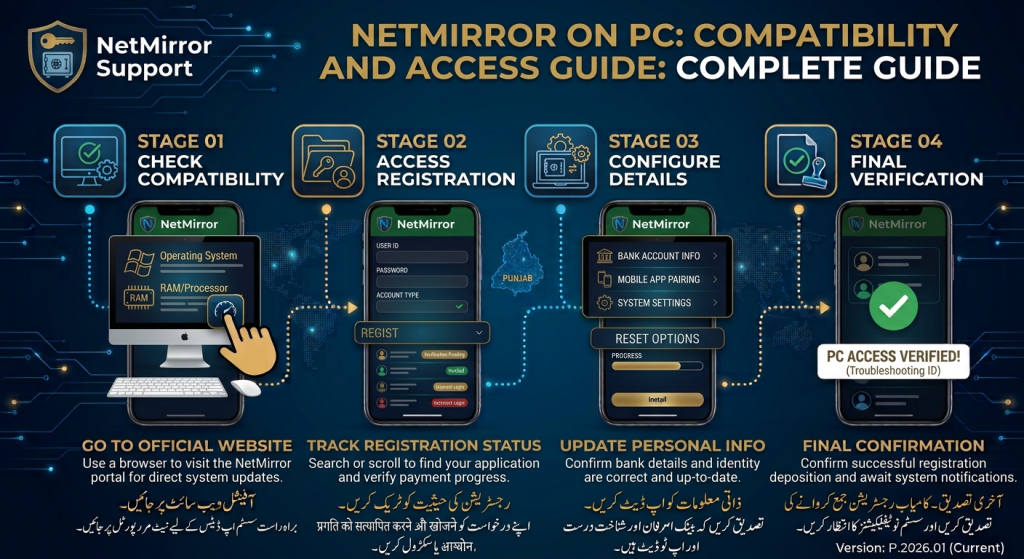
Can You Use NetMirror on PC?
NetMirror access on a PC depends on the availability of a compatible web version or an Android environment.
There are two main methods users may consider:
- Web browser access: Open a compatible NetMirror web service through a supported browser, if an authentic and working web version is available.
- Android emulator: Use compatible Android emulator software to run an Android application on a Windows computer.
An Android APK cannot be installed directly like a normal Windows .exe program. Therefore, always check whether the download is actually designed for Windows before installing anything.
NetMirror PC Compatibility
Before trying to access NetMirror, check whether your computer and browser meet basic requirements.
| Device or Software | Compatibility |
|---|---|
| Windows 10 | Modern browser access may work |
| Windows 11 | Modern browser access may work |
| Windows 8.1 | Depends on browser support |
| Windows 7 | Limited support; security updates have ended |
| macOS | Browser access may work |
| Google Chrome | Suitable for modern web services |
| Microsoft Edge | Suitable for modern web services |
| Mozilla Firefox | Suitable for modern web services |
| Brave Browser | Suitable for modern web services |
| Android Emulator | Depends on emulator and APK compatibility |
These are general browser and software compatibility guidelines, not a guarantee that every NetMirror version will work on every computer.
How to Access NetMirror on PC Without Downloading an APK
Browser access is generally the simplest option if a legitimate NetMirror web service is available.
You do not need to install an Android emulator or download an Android APK for a browser-based service.
Follow these general steps:For Chrome:
You can use the Google Chrome browser to access compatible web services on your Windows PC.
For Microsoft Edge:
Another option is Microsoft Edge browser, which supports modern web technologies.
For Firefox:
You can also try Mozilla Firefox if a website does not work properly in your current browser.
For Android Emulator:
If you need an Android environment on your computer, explore BlueStacks Android emulator and review its system requirements before installation.
Step 1: Open a Supported Browser
Start Google Chrome, Microsoft Edge, Firefox, or another updated browser on your computer.
Step 2: Verify the Website
Find the NetMirror web address through a source you can independently verify. Be careful with websites that advertise changing domains, unofficial download buttons, or suspicious redirects.
Do not assume that every website using the NetMirror name is operated by the same developer.
Step 3: Open the Web Version
If a legitimate browser version is available, open it in your browser and review the website’s privacy policy, terms, and available features.
Step 4: Sign In Only If Necessary
Some web services require an account, while others may offer limited access without signing in.
Avoid entering your Google password or other sensitive information on an unfamiliar website. Check the sign-in process and domain carefully.
Step 5: Check Browser Playback
If the website provides authorised video content, select a title and test whether playback works properly.
You may need to allow necessary browser permissions or adjust playback quality depending on the service.
How to Use NetMirror APK on PC With an Android Emulator
Another possible method is using Android emulator software. An emulator creates an Android environment on a computer so compatible Android applications can run inside it.
This method is different from installing a native Windows application.
Step 1: Choose a Reputable Android Emulator
Research a well-known emulator and download it from its developer’s official website.
Before installation, review its system requirements, privacy policy, and permissions.
Step 2: Install the Emulator
Follow the developer’s installation instructions. Your computer may need sufficient storage, memory, and processor resources.
Step 3: Check APK Compatibility
If you have a NetMirror APK, verify its source, developer information, version, and file integrity before using it.
Do not install an APK simply because a third-party website labels it as the latest or official version.
Step 4: Install Only After Verification
If the APK is from a trustworthy source and compatible with your emulator, follow the emulator’s documented APK installation procedure.
Avoid granting unnecessary permissions.
Step 5: Test the Application
After installation, check whether the application opens correctly and whether its features work in the emulator.
Performance may differ from an actual Android phone because emulators use your computer’s hardware and software resources.
NetMirror Web Version vs Android Emulator
Choosing the right method depends on what you need and whether a trustworthy web version is available.
| Feature | Web Browser | Android Emulator |
|---|---|---|
| Separate APK required | No | Usually, for APK apps |
| Windows installation | No, for browser access | Yes, emulator required |
| Setup complexity | Low | Medium |
| Hardware usage | Generally lower | Generally higher |
| Android app features | Not necessarily | Depends on app compatibility |
| Offline features | Depends on service | Depends on app |
| Security considerations | Website and account safety | Emulator and APK safety |
Which method should you choose?
- Choose browser access if a verified web version is available and you want a simple setup.
- Consider an emulator only if you specifically need Android application functionality and can verify the APK source.
- Avoid unknown Windows installers claiming to be official NetMirror desktop software.
Minimum PC Requirements for Better Performance
The actual requirements depend on your browser, emulator, video quality, and computer hardware.
For general browser use, consider the following:
| Component | Recommendation |
|---|---|
| Operating System | Supported Windows or macOS version |
| Processor | Modern dual-core or better |
| RAM | 4 GB minimum for basic browsing; 8 GB or more recommended |
| Storage | Enough free space for browser cache or emulator files |
| Browser | Latest supported Chrome, Edge, or Firefox |
| Internet | Stable broadband connection |
| Graphics | Updated graphics drivers |
These are general recommendations, not official NetMirror minimum specifications.
If you use an emulator, check its developer’s hardware requirements because emulator performance can vary significantly.
Common NetMirror on PC Problems and Fixes
Sometimes a streaming website or Android application may not work correctly on a computer. The following troubleshooting tips can help identify common issues.
1. NetMirror Website Not Opening
Possible causes include an unavailable website, network restrictions, incorrect address, or browser problems.
Possible solutions:
- Double-check the website address.
- Test another browser.
- Check your internet connection.
- Clear browser cache.
- Verify whether the service is available in your region.
Avoid downloading replacement files from random websites when a domain stops working.
2. NetMirror Not Playing Videos
Playback issues may result from browser compatibility, network interruptions, unsupported media formats, or problems with the video source.
Possible solutions:
- Update your browser.
- Restart the browser.
- Check your internet connection.
- Disable problematic extensions temporarily.
- Try another browser if the service supports it.
3. Emulator Running Slowly
Android emulators require additional system resources. A computer with limited RAM or an older processor may experience slow performance.
Possible solutions:
- Close unnecessary background applications.
- Check the emulator’s recommended settings.
- Update graphics drivers.
- Make sure sufficient storage is available.
- Use a compatible emulator version.
4. APK Installation Failed
An APK may fail to install because of an incompatible Android version, corrupted file, unsupported architecture, or emulator limitations.
Possible solutions:
- Verify the APK’s source and integrity.
- Check the emulator’s Android version.
- Confirm available storage.
- Review the installation error message.
- Avoid modified or unknown APK files.
5. Black Screen or Playback Freezing
A black screen may occur because of graphics compatibility, browser playback problems, or a temporary service issue.
Possible solutions:
- Restart the browser or emulator.
- Update graphics drivers.
- Test another browser.
- Check hardware acceleration settings.
- Try a different authorised video source.
6. Login or Account Problems
Login problems can be related to cookies, incorrect credentials, account restrictions, or a website’s authentication system.
Possible solutions:
- Check the website address before entering credentials.
- Confirm that cookies are enabled if required.
- Clear site-specific cookies if login repeatedly fails.
- Use the official account recovery process.
- Never share your password or OTP with another person.
Is NetMirror on PC Safe?
Safety depends on which website or application you use. The NetMirror name alone does not prove that a particular download or website is trustworthy.
Before accessing a NetMirror service, consider these precautions:
- Avoid suspicious websites offering unknown
.exeinstallers. - Download emulator software only from its developer’s official website.
- Verify APK files before installing them.
- Scan downloaded files with reputable security software.
- Review requested application permissions.
- Avoid websites requesting unnecessary personal or banking information.
- Do not disable antivirus protection to install an unknown application.
Also remember that a secure HTTPS connection does not automatically prove that a website is legitimate or that its content is legally authorised.
Is There an Official NetMirror Windows Application?
Do not assume that a Windows application exists simply because a website offers a NetMirror download button.
An Android APK is designed for Android devices. A Windows computer normally requires a compatible Windows application, a browser-based service, or an Android environment to run Android software.
Before downloading a file labelled NetMirror for PC, check:
- Whether the developer is identifiable.
- Whether the file is distributed through a trustworthy source.
- Whether the application has verifiable publisher information.
- Whether the file is actually intended for Windows.
- Whether independent security checks raise any concerns.
Avoid unknown executable files claiming to be NetMirror PC installers.
Frequently Asked Questions (FAQs)
1. Can I use NetMirror on PC?
PC access may be possible through a compatible browser-based service. Alternatively, an Android emulator may run a compatible Android application. Availability depends on the service and its authenticity.
2. Is NetMirror available for Windows 10 and Windows 11?
A compatible web service can be accessed through supported browsers on Windows 10 and Windows 11. An Android APK cannot be installed directly as a normal Windows application.
3. Do I need an Android emulator to use NetMirror on PC?
Not necessarily. You only need an emulator if you specifically want to run a compatible Android application. A browser-based service does not require one.
4. Can I download NetMirror APK directly on Windows?
You can download an APK file to a Windows computer, but Windows cannot run it directly as a native application. A compatible Android environment is required.
5. Which browser is best for NetMirror on PC?
Updated versions of Chrome, Edge, and Firefox are suitable starting points for modern web services. Actual compatibility depends on the website.
6. Why is NetMirror not opening on my computer?
Possible reasons include an incorrect website address, network restrictions, browser cache, an unavailable service, or unsupported browser features.
7. Can I use NetMirror on a Mac?
A compatible browser-based service may work on macOS. Android APK files do not install natively on Mac computers.
8. Is NetMirror PC safe to download?
Be careful with websites offering unknown Windows installers or modified APK files. Verify the developer and file source before downloading anything.
9. Does NetMirror require an account on PC?
Account requirements depend on the specific web service or application. Check the privacy policy and sign-in process before providing personal information.
10. Is NetMirror free on PC?
Pricing and access conditions depend on the particular service. Check its official terms and avoid websites making unrealistic claims about free access.
Final Words
Using NetMirror on PC may be possible through a compatible browser-based service or an Android emulator, depending on the version and access method available.
For most users, a browser-based option is simpler because it does not require installing an APK or additional software. If you specifically need Android app functionality, an emulator may be an alternative, but you should verify the APK source and compatibility first.
Always use trustworthy software sources, protect your personal information, and check whether the content you access is legally authorised in your region.