
How to Check NetMirror APK Permissions Before Installing
Before installing any application from an APK file, it is important to review its permissions. Android applications may request access to different features of your phone, depending on what they are designed to do.
If you are planning to install NetMirror APK, checking its permissions can help you understand what information or device features the application may access.
This guide explains how to check NetMirror APK permissions before installing, which permissions deserve extra attention, and what security precautions you should follow.
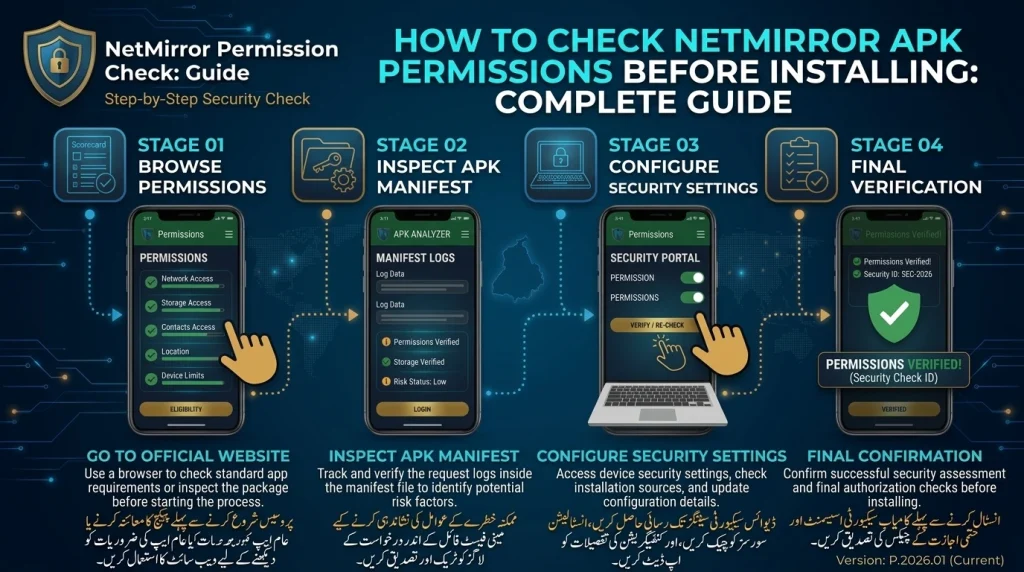
Why Should You Check NetMirror APK Permissions?
App permissions control access to certain information and features on your Android device.
For example, an application may request access to storage, notifications, the camera, or your microphone. Some permissions may be necessary for a particular feature, while others may have no clear connection to the app’s purpose.
Checking permissions before installation can help you:
- Protect your personal information.
- Avoid unnecessary access to sensitive data.
- Identify unusual permission requests.
- Understand what an application can access.
- Make a more informed installation decision.
- Reduce potential privacy and security risks.
Remember that permissions alone cannot prove whether an APK is safe. You should also consider the download source, developer information, file authenticity, and security warnings.Useful Official Android Security Resources
Before installing NetMirror APK, review these official Android security resources to understand app permissions and protect your device.
Android Security Information – Explore Android’s security and privacy features.
Android App Permissions Guide – Learn how Android permissions control access to sensitive device features.
Google Play Protect Help – Understand how Google Play Protect helps identify potentially harmful applications.
Android Runtime Permissions Guide – Learn how Android handles permission requests and user approval.
How to Check NetMirror APK Permissions Before Installing
There are several ways to examine an APK before installing it. The exact options depend on your Android version and the tools available on your device.
1. Check the APK Information Before Installation
Start by reviewing the information available on the website or source offering the NetMirror APK.
Look for:
- Application name.
- Developer or publisher information.
- Version number.
- Package name, if available.
- Requested permissions.
- Privacy policy or contact information.
- Details about recent changes.
Be careful if a website provides no information about the application or makes unsupported claims such as 100% safe, virus-free, or officially verified.
A download page is not proof that the APK is trustworthy.
2. Use an APK Analysis Tool
An APK analysis tool can help inspect the permissions declared inside an Android installation package.
A useful analysis tool should allow you to review:
- Declared Android permissions.
- Application package information.
- Requested sensitive access.
- App components and configuration.
- Other security-related details.
Choose a reputable tool and understand what information it collects.
If you use an online APK scanner, remember that uploading a file shares that file with the scanning service. Avoid uploading private or confidential APK files to services you do not trust.
Also, an APK scanner cannot guarantee that an application is completely safe.
3. Review Android Permission Information
Android uses different permission categories to control access to sensitive device features.
Depending on your Android version, some permissions are requested when an application tries to use a particular feature rather than being displayed as a simple list before installation.
For this reason, reviewing the APK’s declared permissions before installation and checking the actual permissions granted after installation are two different steps.
4. Check the Application’s Requested Permissions
If the APK analysis tool displays a permission list, review each item carefully.
Pay particular attention to permissions involving:
- Contacts.
- Location.
- Camera.
- Microphone.
- SMS.
- Phone and call information.
- Photos and videos.
- Files and storage.
- Accessibility services.
- Displaying over other applications.
Ask yourself whether the requested access makes sense for the application’s advertised purpose.
For example, a video playback application may have a reasonable explanation for accessing network connectivity. However, a request for contacts or SMS access may deserve additional investigation if there is no clear feature requiring it.
Do not assume every permission is harmful, but do not approve unnecessary access either.
NetMirror APK Permissions You Should Examine Carefully
Different Android permissions provide different levels of access. Here are some important categories to understand before installing an APK.
1. Storage and Media Permissions
Storage and media permissions may allow an application to access certain files, photographs, or videos on your device.
Ask these questions:
- Does the application need to select or save media?
- Does it request access to more files than necessary?
- Can you use a limited or selected-files permission instead?
Prefer limited access whenever Android offers that option.
2. Camera Permission
Camera access allows an application to use your device’s camera.
A streaming application would generally need a clear explanation for requesting camera access.
If you cannot identify a legitimate feature that requires the camera, do not grant this permission without further investigation.
3. Microphone Permission
Microphone access can allow an application to record audio.
Before approving it, consider whether the application actually provides a feature that needs microphone input.
If there is no clear reason, deny the permission.
4. Location Permission
Location permissions can allow applications to access information about your device’s location.
Android may offer different levels of location access, including approximate and precise location.
Only grant location access if a feature genuinely needs it. Otherwise, keep it disabled.
5. Contacts and SMS Permissions
Contacts and SMS permissions deserve particular attention because they may expose personal information.
A media streaming application generally has no obvious reason to read your contact list or access text messages.
If an APK requests these permissions without a convincing explanation, consider avoiding the installation.
6. Accessibility Permission
Accessibility access is a powerful Android feature designed to support users and assist with device interaction.
Some legitimate applications use accessibility services for specific accessibility-related functions. However, granting this access to an unfamiliar application can create serious privacy and security risks.
Do not enable an accessibility service simply because an app asks you to do so.
7. Display Over Other Apps
This permission allows an application to display certain content over other applications.
It can be useful for legitimate features, such as floating controls, but it can also be misused.
If NetMirror or an installer asks for this access, check the reason carefully before enabling it.
How to Check NetMirror Permissions After Installation on Android
If you have already installed the application, Android provides built-in settings for reviewing and managing its permissions.
Follow these steps:
- Open the Settings app.
- Select Apps or App Management.
- Find NetMirror in the installed applications list.
- Tap Permissions or App Permissions.
- Review the permissions that are allowed or denied.
- Select any permission you do not want to grant.
- Choose Don’t Allow when appropriate.
The exact menu names may differ between Samsung, Xiaomi, Redmi, Google Pixel, and other Android devices.
Remember that denying a permission may prevent a feature from working, but you do not need to approve every request automatically.
How to Use Android Permission Manager
Android also provides a Permission Manager that lets you review which applications can access particular types of information.
To use it:
- Open Settings.
- Select Security & Privacy or Privacy.
- Find Permission Manager or Permission Usage.
- Select a category such as Camera, Microphone, Location, or Contacts.
- Review the applications that have access.
- Remove permissions from applications that do not need them.
This is useful when you want to review multiple applications rather than checking NetMirror individually.
How to Check Google Play Protect Before Installing an APK
Google Play Protect helps scan applications for potentially harmful behavior, including apps installed from sources outside Google Play.
Follow these steps:
- Open the Google Play Store.
- Tap your profile picture.
- Select Play Protect.
- Tap Scan.
- Review the scan results.
- Keep Play Protect enabled.
Play Protect may warn you about potentially harmful applications or prevent certain risky installations.
Do not disable Play Protect simply to install an APK that Android has flagged as potentially harmful.
What Should You Do If NetMirror Requests Suspicious Permissions?
If the APK requests permissions that do not appear necessary, take these precautions:
- Stop the installation process.
- Review the requested permissions.
- Check whether the source provides trustworthy developer information.
- Look for a clear explanation of the permissions.
- Scan the APK using a reputable security tool.
- Avoid the file if significant concerns remain.
Do not provide sensitive access just to make an application open.
It is safer to avoid an application when its permission requests cannot be explained.
How to Protect Your Android Device When Installing APK Files
Checking permissions is only one part of APK security. Follow these additional precautions:
- Download applications only from sources you can verify.
- Avoid modified or cracked APK files.
- Keep Android updated.
- Keep Google Play Protect enabled.
- Review permissions after installation.
- Avoid enabling unnecessary accessibility access.
- Do not share OTPs or passwords with unknown applications.
- Uninstall applications that behave suspiciously.
- Review battery and data usage for unusual activity.
Also remember that enabling Install Unknown Apps is a separate Android setting. It gives a selected source, such as your browser or file manager, permission to install APK files. It does not prove that the APK itself is safe.
Common Mistakes to Avoid When Checking APK Permissions
Many users focus only on whether an application installs successfully. However, installation does not mean that the application is safe.
Avoid these common mistakes:
Ignoring permission requests: Always review access to sensitive information.
Trusting download websites blindly: A professional-looking website does not guarantee that an APK is genuine.
Disabling security warnings: Do not turn off security protections just to complete an installation.
Granting every permission: Allow only the access that is necessary for a feature you understand.
Assuming a scan guarantees safety: Security scans can help identify threats, but they cannot guarantee that every file is harmless.
Frequently Asked Questions
1. How can I check NetMirror APK permissions before installing?
Review the APK information and use a reputable APK analysis tool to inspect its declared permissions. After installation, check Android Settings under Apps and Permissions to review the access actually granted.
2. Is NetMirror APK safe to install?
Safety cannot be confirmed from the application name or permission list alone. Check the APK source, developer information, requested permissions, security scan results, and any Android warnings before deciding.
3. Which NetMirror permissions should I be careful about?
Pay particular attention to contacts, SMS, location, camera, microphone, accessibility services, and display-over-other-apps access. Investigate any request that does not have a clear purpose.
4. Can I deny permissions to NetMirror?
Yes. Android allows users to deny many runtime permissions. However, some features may not work if the application genuinely needs a particular permission.
5. Does an APK permission checker guarantee safety?
No. A permission checker can show requested access, but it cannot prove that an application has no malware or hidden security risks.
6. What is the difference between APK permissions and Install Unknown Apps?
APK permissions describe the information and device features an application may access. Install Unknown Apps is a separate Android setting that controls which sources can install applications outside an official app store.
7. Should I disable Google Play Protect before installing NetMirror?
No. Google recommends keeping Play Protect enabled because it checks applications and can warn users about potentially harmful software.
Final Thoughts
Learning how to check NetMirror APK permissions before installing can help you make a more informed decision about your Android security.
Review the APK’s declared permissions, investigate sensitive access requests, use reputable security tools, and keep Google Play Protect enabled.
Most importantly, do not grant unnecessary permissions simply because an application requests them. If the APK comes from an unverified source or asks for access that cannot be explained, avoiding the installation is the safer choice.