
NetMirror Network Error: Possible Causes and Solutions
Are you seeing a NetMirror Network Error when trying to open the app, browse movies, or play a video? This issue can interrupt streaming and prevent the application from connecting to its servers. Sometimes the problem is related to your internet connection, while in other cases it may be caused by server downtime, outdated app versions, DNS settings, or device restrictions.
The good news is that several troubleshooting methods can help identify and resolve the problem. In this guide, you will learn why NetMirror network errors occur and how to fix them step by step on Android phones, tablets, Android TVs, and other compatible devices.
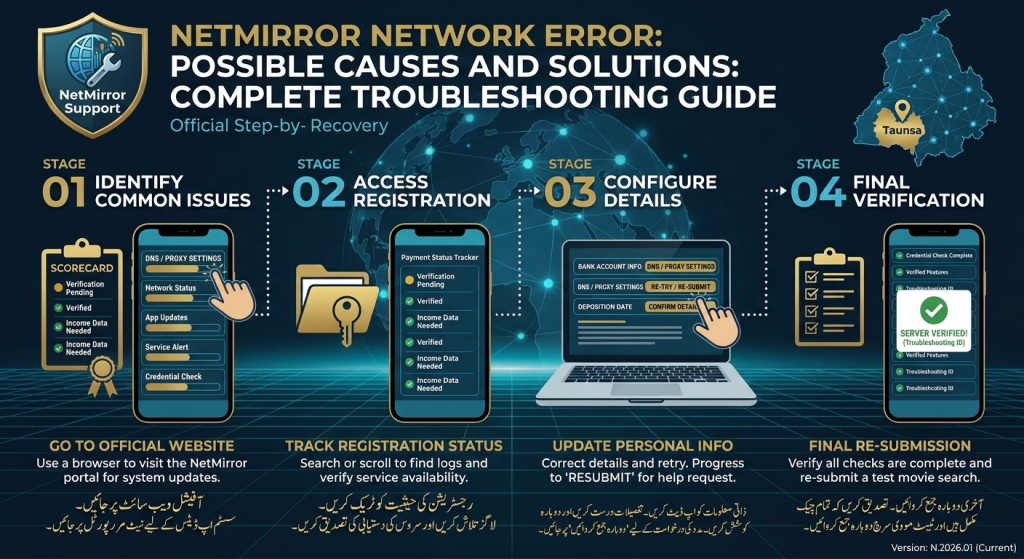
What Is a NetMirror Network Error?
A NetMirror network error occurs when the application cannot establish a successful connection with the required online service. As a result, the app may fail to load its homepage, display content, search for movies, or start video playback.
Depending on the cause, you may experience messages such as:
- Network connection failed.
- Unable to connect to server.
- Please check your internet connection.
- Something went wrong while loading content.
- Server connection timed out.
These messages do not always mean your internet is unavailable. The issue may also come from the app, its server, or your device’s network configuration.
Common Causes of NetMirror Network Error
Before trying different solutions, it is helpful to understand what may be causing the problem.
1. Unstable Internet Connection
A weak or unstable internet connection is one of the most common reasons for network errors. If your Wi-Fi signal keeps dropping or your mobile data is slow, NetMirror may struggle to connect to online services.
2. NetMirror Server Downtime
Sometimes the problem is not on your side. The service’s servers may be temporarily unavailable because of maintenance, technical issues, or unexpected traffic.
If other websites and apps work normally but NetMirror does not, a server-side issue may be responsible.
3. Outdated NetMirror App Version
An older application version may contain bugs or compatibility problems. If the service changes its connection requirements, an outdated version may stop communicating properly.
4. VPN or Proxy Interference
A VPN or proxy can sometimes interfere with app connections. Certain servers may also restrict traffic from particular IP addresses or regions.
However, VPN-related issues are not always the cause, so test your connection before changing these settings.
5. Incorrect DNS Settings
DNS settings help your device locate online services. If the configured DNS server is unavailable or responding incorrectly, some apps may fail to connect even when the internet appears to be working.
6. Corrupted App Cache
Temporary files help applications load faster, but corrupted cache data can cause unexpected errors. NetMirror may fail to load content or establish a connection because of damaged temporary files.
7. Device or Network Restrictions
Firewall settings, parental controls, router restrictions, and certain network configurations can block an application’s internet access.
Understanding these possible causes makes troubleshooting easier.
How to Fix NetMirror Network Error
Try the following solutions one by one. After each step, reopen NetMirror and check whether the problem has been resolved.
1. Check Your Internet Connection
Start by checking whether your internet connection is working properly.
Follow these steps:
- Open a browser on your device.
- Visit a few reliable websites.
- Check whether pages load normally.
- Open another streaming or online application.
- If everything loads slowly, troubleshoot your internet connection first.
If you are using mobile data, make sure your data package is active and your signal is strong.
Tip: A stable connection is more important than simply having an active internet connection.
2. Restart Your Wi-Fi Router
If your internet is unstable, restarting the router may resolve temporary connectivity problems.
Follow these steps:
- Turn off your Wi-Fi router.
- Disconnect its power cable.
- Wait approximately 30 seconds.
- Reconnect the power cable.
- Turn the router back on.
- Wait until the internet connection becomes stable.
- Open NetMirror again.
This process can refresh the router’s connection and resolve some temporary network issues.Link 1: Android Network Troubleshooting
Anchor Text: troubleshoot internet connection problems on Android
URL: https://support.google.com/android/
Isay article ke section “Check Your Internet Connection” mein add karein.
Link 2: Google Play Protect
Anchor Text: Google Play Protect security guidelines
URL: https://support.google.com/googleplay/answer/2812853
Isay “Update NetMirror to the Latest Available Version” section mein add karein.
Link 3: Android App Permissions
Anchor Text: manage app permissions on Android
URL: https://support.google.com/android/answer/9431959
Isay “Device or Network Restrictions” section mein add karein.
3. Switch Between Wi-Fi and Mobile Data
Sometimes a particular network may be causing the problem.
For example, NetMirror may fail to connect through your home Wi-Fi but work through mobile data.
Try the following:
- If you are using Wi-Fi, switch to mobile data.
- If you are using mobile data, connect to a different Wi-Fi network.
- Test the app again.
- Compare whether the error appears on both connections.
If NetMirror works on one network but not another, your router, ISP, or network settings may be responsible.
4. Restart the NetMirror App
A temporary application glitch can sometimes prevent the app from connecting to its services.
To restart it:
- Close NetMirror completely.
- Open your device’s recent apps screen.
- Remove NetMirror from the background.
- Wait a few seconds.
- Launch the application again.
If the error continues, restart your device before trying other solutions.
5. Clear NetMirror App Cache
Corrupted temporary files can interfere with normal app functionality. Clearing the cache may help fix loading and connection problems.
On Android:
- Open Settings.
- Select Apps or App Management.
- Find and open NetMirror.
- Tap Storage or Storage Usage.
- Select Clear Cache.
- Reopen the application.
Avoid selecting Clear Data unless necessary. Clearing app data may remove saved settings or local information and require you to configure the application again.
6. Disable VPN or Proxy Temporarily
If you are using a VPN or proxy, it may be interfering with the connection.
Try these steps:
- Open your VPN application.
- Disconnect the current VPN server.
- Disable any manually configured proxy.
- Reconnect to your normal internet connection.
- Open NetMirror again.
If the problem disappears, the VPN or proxy configuration may have been responsible.
Only use network configurations that are legal and permitted in your location.
7. Check Your Device’s Date and Time
Incorrect date and time settings can sometimes cause connection or security certificate problems.
To check them on Android:
- Open Settings.
- Go to System or General Management.
- Select Date and Time.
- Enable Automatic Date and Time.
- Enable Automatic Time Zone if available.
- Restart NetMirror.
Using automatic time settings helps your device maintain accurate system information.
8. Update NetMirror to the Latest Available Version
An outdated application may contain bugs that affect network connectivity.
If a newer version is available from a source you can independently verify as legitimate, check its release information and update instructions.
Before installing any APK:
- Verify the source and developer information.
- Avoid modified or suspicious installation files.
- Check requested permissions.
- Keep Google Play Protect or your device’s security protection enabled.
Do not install an unknown APK simply because a website claims it will fix network errors.
9. Check DNS Settings
If websites load but certain applications cannot connect, DNS settings may be worth checking.
On Android, you can review Private DNS:
- Open Settings.
- Go to Network and Internet or Connections.
- Find Private DNS.
- Check whether a custom hostname is configured.
- If you recently changed it, return to Automatic as a troubleshooting test.
- Reconnect to your network and test the app.
Menu names may differ depending on your Android version and device manufacturer.
10. Restart Your Android Device
Restarting your device can clear temporary system problems and refresh network connections.
Follow these steps:
- Press and hold the power button.
- Select Restart.
- Wait for your device to boot completely.
- Reconnect to Wi-Fi or mobile data.
- Open NetMirror.
This is a simple troubleshooting method that can resolve temporary software and connectivity issues.
How to Fix NetMirror Network Error on Android TV
If you are experiencing a network error on Android TV, try these additional steps:
- Restart your Android TV.
- Restart your Wi-Fi router.
- Check whether other TV applications can access the internet.
- Move your router closer to the television if the Wi-Fi signal is weak.
- Clear NetMirror’s cache from the TV settings.
- Check for available system and application updates.
- Verify that the TV’s date and time are correct.
If other applications also fail to connect, the issue is more likely related to your TV’s internet connection rather than NetMirror alone.
NetMirror Network Error vs Server Error
Network errors and server errors can look similar, but they may have different causes.
| Problem | Possible Cause | What to Try |
|---|---|---|
| Network connection failed | Weak internet | Restart router |
| Server connection timed out | Server unavailable or slow connection | Wait and try again |
| Homepage not loading | App or network problem | Clear cache |
| Videos not playing | Playback or connection issue | Test another network |
| App works on mobile data only | Wi-Fi or router restriction | Check router settings |
| Error after an update | Version compatibility issue | Verify the installed version |
These are general troubleshooting clues, not guaranteed diagnoses.
How to Know Whether NetMirror Servers Are Down
Sometimes none of the troubleshooting methods work because the service itself is experiencing a problem.
Here are a few ways to investigate:
- Check whether other apps and websites work.
- Try NetMirror again after some time.
- Check for an official service announcement, if one is available.
- Ask whether other users are reporting the same issue.
- Avoid downloading replacement APK files from random websites.
If the service is temporarily unavailable, changing your device settings may not solve the problem. Waiting for the service to recover may be the only practical option.
When Should You Reinstall NetMirror?
Reinstallation should be one of your last troubleshooting options.
Consider it only when:
- The app repeatedly crashes or fails to load.
- Clearing the cache does not help.
- The installed version appears corrupted.
- Other network troubleshooting steps have failed.
Before reinstalling, make sure you have a trustworthy installation source. Uninstall the existing app through your device settings, restart your device, and only reinstall if you can verify the replacement application’s authenticity and safety.
Frequently Asked Questions (FAQs)
1. Why does NetMirror show a network error?
NetMirror may display a network error because of an unstable internet connection, temporary server downtime, outdated app files, incorrect DNS settings, VPN interference, or device restrictions.
2. How do I fix NetMirror network error on Android?
First, check your internet connection. Then restart your router and device, switch networks, clear the app cache, and check your date and time settings.
3. Why does NetMirror work on mobile data but not Wi-Fi?
Your Wi-Fi router, DNS configuration, firewall, or internet service provider may be blocking or interfering with the connection. Restart your router and compare the results on another Wi-Fi network.
4. Can an outdated NetMirror version cause network errors?
Yes. An outdated version may contain bugs or compatibility problems that affect its ability to connect to online services.
5. Is NetMirror server downtime responsible for network errors?
It is possible. If your internet works normally and other applications connect successfully, a temporary service-side problem may be responsible.
6. Should I use a VPN to fix NetMirror network errors?
Not necessarily. A VPN can sometimes help diagnose network-routing issues, but it can also cause connection problems. Test your normal connection first and follow applicable local laws and service rules.
7. Will clearing NetMirror cache delete my data?
Clearing cache generally removes temporary files rather than saved account information. However, clearing app data is different and may remove local settings or stored information.
Final Thoughts
A NetMirror Network Error can occur for several reasons, including weak internet connectivity, server downtime, corrupted cache files, outdated application versions, and incorrect network settings.
Start with simple solutions such as checking your internet, restarting your router, switching networks, and clearing the app cache. If the problem continues, investigate VPN, DNS, device restrictions, and possible server-side issues.
Most importantly, avoid installing unverified APK files or changing security settings unnecessarily. If the service itself is unavailable, waiting for it to recover may be the safest option.