
NetMirror Server Error: What It Means and How to Troubleshoot
Are you seeing a server error while trying to open NetMirror or stream content? A NetMirror server error can prevent the application from loading, displaying content, signing in, or playing videos. This problem may appear suddenly, even when your internet connection seems to be working normally.
Server errors can happen because of temporary service interruptions, network problems, outdated application versions, corrupted cache files, or other technical issues.
In this guide, you will learn what a NetMirror server error means, why it happens, and how to troubleshoot common problems step by step. These solutions can help you identify whether the issue is related to your device, internet connection, application, or the service itself.
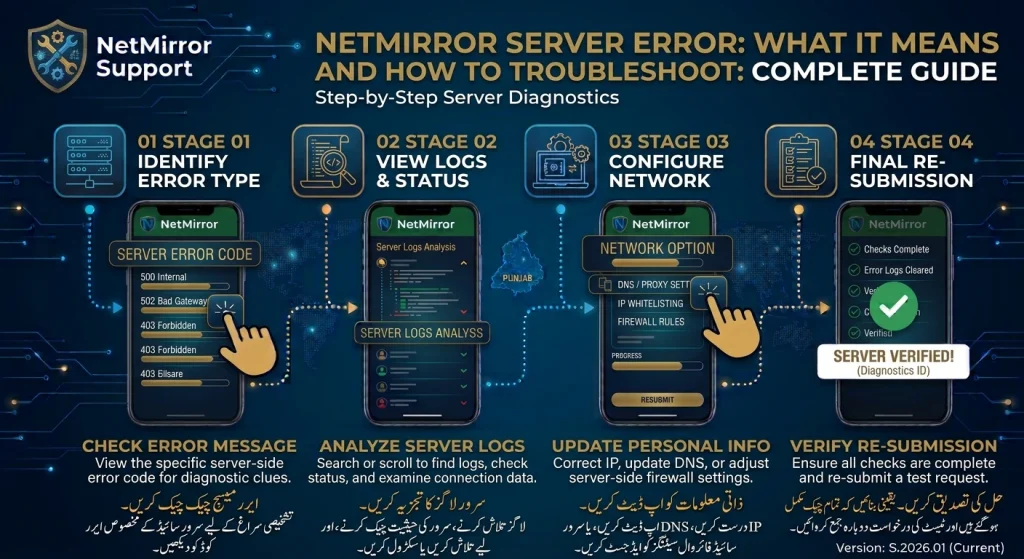
What Does a NetMirror Server Error Mean?
A server error means that an application or website could not complete a request successfully. When you open NetMirror, your device may need to communicate with a remote server to retrieve information, load content, or perform other functions.
If that communication fails, the application may display an error message or remain stuck on a loading screen.
Depending on the cause, you may experience:
- Server error messages.
- A blank or loading screen.
- Content that does not open.
- Login or connection failures.
- Videos that stop loading.
- Search results that do not appear.
A server error does not always mean that your phone or computer is damaged. In some situations, the problem may be outside your control.
Common Reasons for NetMirror Server Errors
Understanding the possible causes can help you choose the right troubleshooting method.
1. Temporary Server Downtime
The service may be temporarily unavailable because of maintenance, technical problems, or unexpected interruptions.
When this happens, multiple users may experience similar errors. Restarting your device will not necessarily solve a problem affecting the remote service.
2. Unstable Internet Connection
A weak or frequently interrupted internet connection can prevent NetMirror from communicating with its servers.
Even if other applications appear to work, a connection problem may affect certain services more than others.
3. Outdated Application Version
An older application version may contain bugs or compatibility issues that affect communication with the service.
If a verified update is available, installing it may help resolve certain problems.
4. Corrupted Cache Files
Applications store temporary files to improve loading speed. However, damaged or outdated cache files can sometimes interfere with normal functionality.
This may result in loading errors, unexpected crashes, or connection problems.
5. Network Restrictions
Some networks may restrict access to particular websites or services. Network configuration, firewall settings, or provider restrictions can sometimes prevent a connection from working properly.
6. Application Compatibility Problems
An application may not work correctly on every Android version, device, or emulator.
Compatibility issues can cause unexpected errors, especially when using an unsupported or modified application version.
How to Fix NetMirror Server Error
Try the following troubleshooting methods one at a time. After each step, reopen NetMirror to check whether the error has disappeared.
1. Check Your Internet Connection
Start by making sure your internet connection is stable.
Follow these steps:
- Open another website or application.
- Check whether pages and content load normally.
- Switch between Wi-Fi and mobile data.
- Restart your router if you are using Wi-Fi.
- Reopen NetMirror and test the connection.
If other applications are also experiencing connection problems, the issue may be related to your internet service.
2. Restart the NetMirror Application
Temporary application errors can sometimes prevent the service from connecting properly.
To restart the application:
- Close NetMirror completely.
- Open your recent applications screen.
- Remove NetMirror from the running apps.
- Wait a few seconds.
- Open the application again.
This simple step may resolve temporary loading or connection problems.
3. Clear NetMirror Cache
Corrupted temporary files may affect application performance.
On an Android device:
- Open Settings.
- Select Apps or App Management.
- Find NetMirror.
- Open Storage or Storage Usage.
- Tap Clear Cache.
- Restart the application.
Important: Start with Clear Cache rather than Clear Data. Clearing app data may remove locally stored settings or login information.
4. Check Whether the Service Is Down
If your internet connection works normally but NetMirror continues showing a server error, the problem may be related to the service itself.
Look for these signs:
- The application fails on different networks.
- Several features stop working simultaneously.
- The same error continues after restarting the app.
- Other users report similar problems through reliable sources.
If a temporary service interruption is suspected, wait and try again later. Check verified official announcements if the service provides them.
Reinstalling the app is unlikely to fix an issue caused by server downtime.
5. Update the Application
An outdated version may contain technical problems that affect connectivity.
If a legitimate update is available:
- Check the installed application version.
- Visit a source you can verify.
- Review the update information.
- Confirm that the version supports your device.
- Install the update only if the source is trustworthy.
- Restart the app and test it again.
Avoid downloading unknown APK files or modified versions from random websites.
6. Restart Your Device
Your phone or tablet may have temporary system issues that affect application performance.
Restarting can refresh background processes and system resources.
- Save any important work.
- Press and hold the power button.
- Select Restart.
- Wait for the device to start again.
- Open NetMirror and check the error.
7. Check Date and Time Settings
Incorrect date or time settings can sometimes interfere with secure connections and application communication.
To check them:
- Open your device Settings.
- Find Date and Time.
- Enable Automatic Date and Time.
- Enable Automatic Time Zone if available.
- Restart the application.
This is a general device troubleshooting step and may help when connection or certificate-related problems are involved.
8. Check Network Restrictions
If NetMirror works on one network but not another, your network configuration may be contributing to the problem.
Try the following:
- Test the service using another trusted internet connection.
- Check whether your Wi-Fi network has parental or firewall restrictions.
- Restart your router.
- Review any custom DNS or network settings you have configured.
Do not install unknown networking applications or change security settings just to bypass an error.
9. Reinstall the Application If Necessary
If the application continues displaying errors after trying the previous methods, reinstalling may help when its installation files are damaged.
Before reinstalling, make sure you can obtain the application from a trustworthy source.
Steps:
- Open Settings.
- Go to Apps.
- Select NetMirror.
- Tap Uninstall.
- Restart your device.
- Obtain a verified installation version, if available.
- Install it and check whether the problem remains.
Reinstallation will not resolve server downtime or unavailable service infrastructure.
Understanding Common NetMirror Server Error Messages
Different error messages can indicate different types of problems. Their exact meanings depend on the application or website displaying them.
| Error message or symptom | Possible meaning | Recommended action |
|---|---|---|
| Server Error | Request could not be completed | Check service availability |
| 500 Internal Server Error | A server-side problem occurred | Wait and try again |
| 502 Bad Gateway | A server received an invalid response from another server | Retry later |
| 503 Service Unavailable | The service is temporarily unavailable | Check again later |
| 504 Gateway Timeout | A server did not respond in time | Check connection and retry |
| Connection Failed | Communication could not be established | Test your internet |
| Request Timed Out | The request took too long | Check network stability |
These are general HTTP and connection error meanings. They do not confirm that NetMirror uses or displays every one of these specific error codes.
How to Know Whether the Problem Is on Your Device or the Server
One of the most important troubleshooting steps is identifying where the problem originates.
| Test | What the result may indicate |
|---|---|
| Other websites do not load | Possible internet connection problem |
| Other apps work, but NetMirror fails | Possible application or service issue |
| NetMirror fails on multiple networks | Possible service-side or app problem |
| The error disappears after clearing cache | Possible temporary app-data issue |
| The error appears for multiple users | Possible wider service interruption |
These checks help narrow down the cause, although they cannot confirm the exact technical reason without information from the service provider.
Is It Safe to Use NetMirror During a Server Error?
Be careful when troubleshooting third-party applications. Some websites may claim to offer special server fixes, replacement APKs, or modified versions.
These downloads may expose your device to unwanted software or privacy risks.
Follow these precautions:
- Use verified sources for application downloads.
- Avoid modified or cracked APK files.
- Do not disable antivirus or device security protections.
- Avoid websites requesting unnecessary personal information.
- Do not enter account details on unfamiliar pages.
- Review application permissions before installation.
A server error does not mean you need to download another application or install an unknown repair tool.
How to Prevent NetMirror Server Errors in the Future
Although you cannot prevent every server-side problem, good device and network practices may reduce common errors.
- Keep your operating system updated.
- Use a stable internet connection.
- Clear temporary cache files when necessary.
- Maintain enough free device storage.
- Use compatible application versions.
- Avoid unofficial modifications.
- Check service announcements when problems occur.
Remember that server maintenance and technical interruptions may happen regardless of your device settings.
Frequently Asked Questions
1. Why is NetMirror showing a server error?
NetMirror may display a server error because of temporary service downtime, network problems, outdated application versions, corrupted cache files, or compatibility issues.
2. How do I fix a NetMirror server error?
Check your internet connection, restart the application, clear its cache, verify service availability, and check for legitimate updates. Try these methods one by one.
3. Is a NetMirror server error caused by my internet?
Not always. A weak connection can cause communication failures, but a server-side interruption or application bug may produce similar symptoms.
4. What does a 503 error mean?
A 503 Service Unavailable response generally means that a server cannot handle the request temporarily. The issue may be caused by maintenance, overload, or another server-side problem.
5. Will clearing cache fix NetMirror server errors?
Clearing cache may help if temporary application files are corrupted. However, it will not fix server downtime or an unavailable service.
6. Should I reinstall NetMirror to fix a server error?
Reinstallation may help if the application installation is damaged. However, it is not a reliable solution for server-side problems.
7. Why does NetMirror work on Wi-Fi but not mobile data?
Different networks may have different connection quality, DNS settings, or access restrictions. Test another trusted network and check your device’s network configuration.
8. How long does a NetMirror server error last?
There is no confirmed duration. A temporary network problem may disappear quickly, while a service-side issue may take longer to resolve. Check again later if the problem appears to affect the service itself.
Final Thoughts
A NetMirror server error can be frustrating, especially when it prevents you from opening the application or streaming content. However, the problem does not always originate from your device.
Start by checking your internet connection and restarting the application. Then clear the cache, verify compatibility, and check whether the service is temporarily unavailable. If the problem is server-side, waiting for the service to recover may be the only effective option.
Always use trustworthy application sources and avoid suspicious downloads advertised as server-error fixes. Understanding the possible causes will help you troubleshoot the problem more safely and efficiently.