
NetMirror Buffering or Loading Forever: How to Troubleshoot
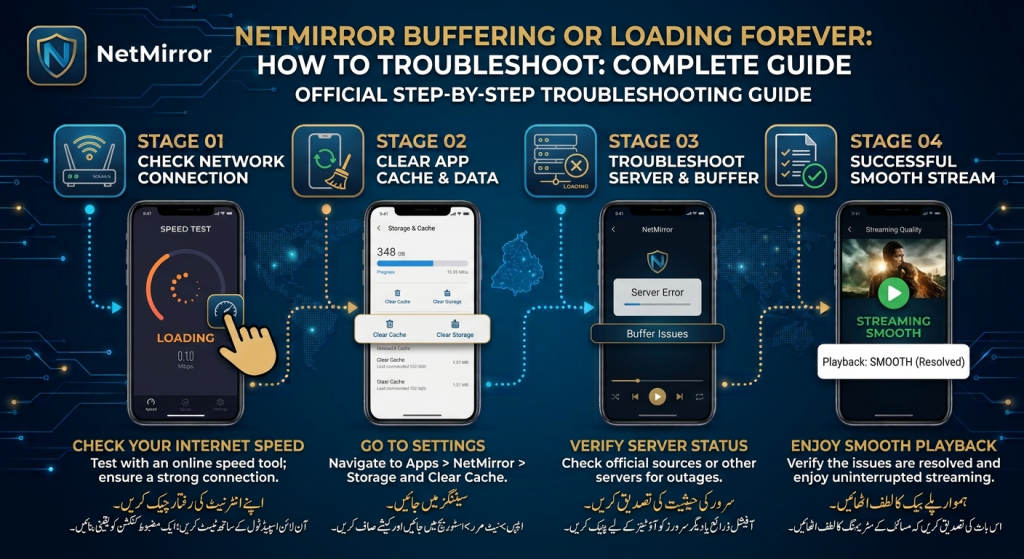
Are you experiencing NetMirror buffering or loading forever when trying to open the app or play content? This problem can be frustrating, especially when the loading screen does not disappear or videos keep buffering without starting.
There can be several reasons behind this issue, including a slow internet connection, temporary server problems, outdated app versions, corrupted cache files, or device compatibility issues.
In this guide, you will learn how to troubleshoot NetMirror buffering or loading forever, identify possible causes, and try practical solutions to improve app performance on Android devices.
Why Is NetMirror Buffering or Loading Forever?
Before trying different solutions, it is helpful to understand what might be causing the problem.
Here are some common reasons why NetMirror may get stuck on the loading screen:
- Slow internet connection: An unstable connection can prevent content from loading properly.
- Temporary server problems: The service may be experiencing downtime or technical difficulties.
- Outdated application: An older app version may have compatibility or performance problems.
- Corrupted cache files: Temporary data can sometimes interfere with normal app operation.
- Low device storage: Limited storage may affect application performance.
- VPN or network restrictions: Certain network configurations may interrupt connectivity.
- Device compatibility: Your Android version or hardware may not support a particular app release properly.
Identifying the possible cause can help you choose the right troubleshooting method.
10 Ways to Fix NetMirror Buffering or Loading Forever
Try the following solutions one by one. Check whether the problem is resolved after each step.
1. Check Your Internet Connection
A slow or unstable internet connection is one of the most common reasons for continuous buffering.
Try these steps:
- Open another website or streaming application.
- Check whether other online services are loading normally.
- Switch from Wi-Fi to mobile data, or vice versa.
- Restart your Wi-Fi router if other devices are also experiencing problems.
- Move closer to your router to improve signal strength.
If other apps also load slowly, your internet connection may be the main problem.
2. Restart the NetMirror App
Temporary application glitches can sometimes cause an endless loading screen.
To restart the app:
- Close NetMirror completely.
- Open your phone’s recent apps screen.
- Remove NetMirror from the recent apps list.
- Wait a few seconds.
- Open the application again.
If the problem continues, move to the next solution.
3. Clear NetMirror Cache
Corrupted temporary files may affect application performance. Clearing the cache can help resolve certain loading problems.
Follow these steps:
- Open Android Settings.
- Select Apps or App Management.
- Find and select NetMirror.
- Open Storage or Storage Usage.
- Tap Clear Cache.
- Reopen the application.
Important: Select Clear Cache rather than Clear Data initially. Clearing app data may remove saved settings or local information.
4. Restart Your Android Device
Restarting your phone can resolve temporary system issues and refresh background processes.
- Press and hold your phone’s power button.
- Select Restart.
- Wait for your device to turn on.
- Connect to a stable internet connection.
- Open NetMirror again.
This simple step may help if the loading problem is caused by a temporary device glitch.
5. Check Whether NetMirror Is Experiencing Server Problems
Sometimes an application continues loading because its service is temporarily unavailable.
In this situation, changing your phone settings may not solve the problem.
You can:
- Check whether other users are reporting similar issues.
- Look for official service announcements, if available.
- Try again after some time.
- Avoid downloading random replacement APK files.
If the service itself is experiencing downtime, you may need to wait until it becomes available again.
6. Update the NetMirror App
An outdated application may have compatibility problems or bugs.
If a newer version is available from a trustworthy distribution source, check its release information before updating.
Before installing an update:
- Verify the publisher and download source.
- Check Android compatibility.
- Make sure enough storage is available.
- Review security warnings.
- Avoid modified APK files from unknown websites.
An update may help, but it is not guaranteed to fix every buffering issue.
7. Check Your VPN and Network Settings
VPN services, private DNS settings, or network restrictions may sometimes affect application connectivity.
Try the following:
- Check whether a VPN is currently active.
- If you use one, temporarily disconnect it to test your normal connection.
- Review your device’s Private DNS settings.
- Switch between Wi-Fi and mobile data.
- Check whether your network provider is restricting access.
Only change settings you understand, and follow your network provider’s guidance.
8. Free Up Device Storage
When your phone has very little free storage, some applications may become slow or unstable.
To free up space:
- Delete unnecessary downloaded files.
- Remove applications you no longer use.
- Clear temporary files where appropriate.
- Move personal media to another storage location.
- Restart your device after cleaning up storage.
Check whether NetMirror loads normally after freeing up space.
9. Check Android Compatibility
Your Android version and device specifications may affect application performance.
Open Settings, select About Phone, and check your Android version.
If you recently updated your phone’s operating system, the installed app release may not be fully compatible.
Check the application’s documented requirements, if available. Do not install an older or modified APK from an unverified source to bypass compatibility problems.
10. Reinstall NetMirror as a Last Resort
If none of the previous methods works, reinstalling the application may help resolve damaged installation files.
Before uninstalling:
- Consider whether the app stores important local data.
- Check whether you can access a verified installation source.
- Make sure you understand the consequences of removing the existing app.
If you decide to proceed:
- Open Android Settings.
- Select Apps.
- Choose NetMirror.
- Tap Uninstall.
- Restart your phone.
- Obtain a verified installation file, if one is available.
- Review the file and installation warnings before proceeding.
Avoid reinstalling APK files from unknown websites.
NetMirror Buffering vs Loading Forever: What’s the Difference?
These problems may look similar, but they can have different causes.
| Problem | What Happens | Possible Cause |
|---|---|---|
| Continuous buffering | Video keeps pausing | Slow or unstable internet |
| Loading screen forever | App or content never opens | Connectivity or service issue |
| Black screen | Screen appears blank | Playback or compatibility problem |
| App freezes | Controls stop responding | App or device performance issue |
| Content does not start | Selected content fails to play | Service or playback problem |
Understanding the exact symptom can help you identify which troubleshooting steps to try first.
How to Prevent NetMirror Loading Problems in the Future
Although you cannot prevent every technical issue, these habits may reduce common app problems:
- Maintain a stable internet connection.
- Keep enough free storage on your phone.
- Restart your device when temporary issues occur.
- Check app compatibility before installing updates.
- Download APK files only from sources you can verify.
- Avoid unnecessary app permissions.
- Keep Android security features enabled.
- Do not repeatedly install different APK files to fix one problem.
Frequently Asked Questions (FAQs)
1. Why is NetMirror buffering or loading forever?
Possible reasons include an unstable internet connection, temporary service problems, corrupted cache files, outdated software, or Android compatibility issues.
2. How do I fix NetMirror stuck on the loading screen?
Check your internet connection, restart the app, clear its cache, restart your phone, and check whether the service is experiencing temporary problems.
3. Does clearing NetMirror cache delete my data?
Clearing cache generally removes temporary files rather than your saved app data. However, clearing app data is different and may remove local settings or information.
4. Can a slow internet connection cause NetMirror buffering?
Yes. A slow or unstable connection can interrupt content loading and cause continuous buffering. Try switching between Wi-Fi and mobile data.
5. Why does NetMirror work on Wi-Fi but not mobile data?
Your mobile network may have connectivity problems, data restrictions, or network configuration issues. Check your mobile data settings and test another online application.
6. Will updating NetMirror fix loading problems?
An update may fix certain bugs or compatibility issues, but it cannot resolve every problem. Server downtime and internet issues may require different solutions.
7. Should I reinstall NetMirror if it keeps loading?
Reinstallation can help if the installation is damaged. However, try checking your connection, clearing the cache, and restarting your device first.
8. What should I do if NetMirror is not working for everyone?
If the service is experiencing a widespread outage, wait for it to become available again. Repeatedly reinstalling the app is unlikely to fix a server-side problem.
Final Words
NetMirror buffering or loading forever can happen for several reasons, including internet problems, temporary service interruptions, outdated software, corrupted cache files, and device compatibility issues.
Start with simple solutions such as checking your connection, restarting the app, and clearing its cache. If the problem continues, check for service issues, review your Android compatibility, and verify any available update before installing it.
Always use trustworthy software sources and keep your Android security settings enabled. These precautions can help you troubleshoot loading problems without exposing your device to unnecessary risks.