
NetMirror Not Working Today? Possible Causes and Solutions
Are you trying to open NetMirror, but the app or website is not working today? You may experience problems such as a blank screen, loading errors, playback failures, login issues, or unexpected app crashes.
These problems can happen for several reasons, including internet connectivity issues, outdated app versions, server interruptions, device compatibility, or corrupted cache files.
In this guide, we explain why NetMirror is not working today and share practical solutions you can try to fix common problems on Android phones, tablets, smart TVs, and other supported devices.
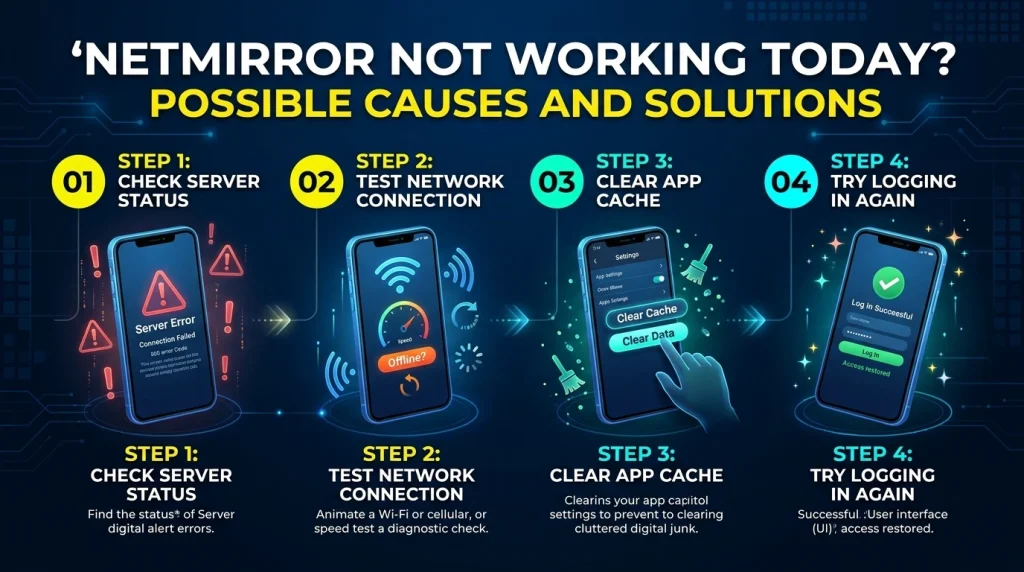
Why Is NetMirror Not Working Today?
There is no single reason why NetMirror may stop working. The problem could be related to your device, internet connection, app installation, or the service itself.
Here are some common possible causes:
- Server problems: The service may be temporarily unavailable.
- Internet connection: A slow or unstable connection can prevent content from loading.
- Outdated application: An older version may have compatibility problems.
- Corrupted cache: Temporary files can sometimes interfere with app performance.
- Device compatibility: Your Android version or device may not support the installed version.
- Login issues: Incorrect account details or temporary authentication errors may prevent access.
- Playback errors: A particular video source may be unavailable.
- VPN or network restrictions: Some network configurations may interfere with connections.
Before changing your device settings, identify whether the problem affects only NetMirror or other apps and websites as well.
How to Fix NetMirror Not Working Today
Try the following troubleshooting methods one by one. After each step, reopen NetMirror to check whether the problem has been resolved.
1. Check Your Internet Connection
An unstable internet connection is one of the most common reasons streaming applications fail to load.
Follow these steps:
- Open another website or application.
- Check whether it loads normally.
- Switch from Wi-Fi to mobile data, or the other way around.
- Restart your Wi-Fi router if necessary.
- Try opening NetMirror again.
If other apps also fail to connect, the issue may be related to your internet service rather than NetMirror.
2. Check Whether NetMirror Servers Are Down
Sometimes an application stops working because its service or servers are temporarily unavailable.
Possible signs include:
- The app opens but content does not load.
- You see repeated connection errors.
- Videos remain stuck on the loading screen.
- Login requests fail repeatedly.
- The same issue occurs on multiple devices and networks.
If these symptoms appear, wait for a while and try again. If an official website or verified support channel is available, check it for service announcements.
Avoid downloading random replacement APK files from websites claiming to offer a server fix.
3. Restart the NetMirror App
A temporary application glitch may cause NetMirror to freeze or stop responding.
To restart it:
- Close NetMirror completely.
- Open your phone’s recent apps screen.
- Swipe NetMirror away.
- Wait a few seconds.
- Launch the app again.
If the problem continues, restart your device before trying other solutions.
4. Clear NetMirror Cache
Corrupted temporary files can sometimes cause loading errors, crashes, or unexpected behavior.
On Android:
- Open Settings.
- Select Apps or App Management.
- Find NetMirror in the installed apps list.
- Open Storage or Storage & Cache.
- Tap Clear Cache.
- Reopen the application.
Important: Start with Clear Cache rather than Clear Data. Clearing app data may remove saved preferences or login information.
5. Update the NetMirror App
An outdated application may not work correctly with your current Android version or available services.
If you installed NetMirror through an APK file, check whether a newer version is available from a source you can verify and trust.
Before updating:
- Confirm that the source is trustworthy.
- Check that the version is compatible with your device.
- Avoid modified APK files from unknown websites.
- Do not ignore Android security warnings.
If no trustworthy update is available, avoid installing files simply because a website labels them as the latest version.
6. Restart Your Android Device
Restarting your phone can resolve temporary software and network problems.
Follow these steps:
- Press and hold your phone’s power button.
- Select Restart.
- Wait for the device to turn on.
- Connect to a stable internet network.
- Open NetMirror again.
This simple method can help when an app freezes or stops responding unexpectedly.
7. Check Your Device Storage
Low storage space can affect application performance and prevent temporary files from being created.
To check your storage:
- Open Settings.
- Select Storage.
- Review the available space.
- Remove unnecessary downloads or files if storage is nearly full.
- Restart your device.
Keep enough free space for Android and your applications to operate properly.
8. Check Date and Time Settings
Incorrect date or time settings can sometimes cause connection and authentication problems.
To fix this:
- Open Settings.
- Go to Date & Time.
- Enable Automatic Date & Time.
- Enable Automatic Time Zone if available.
- Restart NetMirror.
This allows your device to use network-provided time settings.
9. Check VPN and Network Settings
VPNs, private DNS settings, firewalls, or network filters can sometimes interfere with application connections.
Try these checks:
- Temporarily disconnect your VPN if you use one.
- Check whether Private DNS is configured correctly.
- Test the application on another trusted network.
- Review any firewall or network-filtering settings.
Do not disable security protections permanently or use unknown proxy services to access an application.
10. Reinstall NetMirror
If the application continues to crash or display errors, reinstalling it may help.
Before reinstalling, remember that this can remove locally stored app data.
Follow these steps:
- Open Settings on your Android device.
- Select Apps.
- Find NetMirror.
- Tap Uninstall.
- Restart your device.
- Only reinstall the application if you can verify a trustworthy source.
Avoid unofficial APK download pages that make unsupported claims about fixing server errors.
Common NetMirror Problems and Their Solutions
Different errors may require different troubleshooting steps. Use this table to identify a possible solution.
| NetMirror Problem | Possible Cause | Suggested Solution |
|---|---|---|
| NetMirror not opening | App glitch or compatibility issue | Restart or reinstall the app |
| Blank screen | Loading or server problem | Check internet and retry |
| Videos not playing | Playback source unavailable | Try again later |
| Login not working | Authentication issue | Check login details and retry |
| App keeps crashing | Cache or compatibility issue | Clear cache and restart |
| Buffering continuously | Slow internet | Test another network |
| Installation failed | APK or device compatibility | Check the installation source and compatibility |
| Content not loading | Server or network interruption | Check service availability |
These are general troubleshooting suggestions, not confirmation of a specific current NetMirror outage.
Is NetMirror Down Today or Is the Problem With Your Device?
Before changing your phone settings, determine whether the problem is limited to your device.
Use these checks:
Check 1: Open other applications
If other streaming apps and websites work normally, the issue may be specific to NetMirror.
Check 2: Try another internet connection
If NetMirror works on mobile data but not Wi-Fi, your router or network settings may be involved.
Check 3: Test another supported device
If the same problem occurs on multiple devices and networks, a service-side interruption becomes more likely.
Check 4: Check official announcements
Look for verified service updates if an official support or announcement channel exists.
If the service appears unavailable across devices, waiting may be the only practical option until the service is restored.
Is It Safe to Download Another NetMirror APK?
Be careful when searching for another APK because fake download pages and modified applications can create security and privacy risks.
Before downloading an APK:
- Verify the website and its reputation.
- Avoid files distributed through suspicious advertisements.
- Check requested permissions before installation.
- Scan downloaded files using available security tools.
- Keep Google Play Protect enabled.
- Avoid APK files that request unnecessary access.
Google provides information about Android app security through its Google Play Protect help page.
Do not assume that an APK is safe simply because a website describes it as an updated or working version.
When Should You Stop Troubleshooting?
Not every NetMirror problem can be fixed through phone settings.
Consider stopping and waiting if:
- The service appears unavailable across multiple devices.
- The same error occurs on different internet connections.
- No verified update or official fix is available.
- A download source requests unusual permissions.
- You receive repeated security warnings.
Repeatedly installing unknown APK files can create more problems than it solves.
Frequently Asked Questions
1. Why is NetMirror not working today?
NetMirror may not work because of server interruptions, unstable internet, outdated software, corrupted cache files, or device compatibility problems. Check your connection and restart the application first.
2. How do I fix NetMirror not opening?
Restart the app, clear its cache, check your internet connection, and restart your Android device. If the issue continues, check whether the service is temporarily unavailable.
3. Why is NetMirror showing a black screen?
A black screen may be caused by a loading problem, unavailable content source, application glitch, or compatibility issue. Restart the app and test your internet connection.
4. Why is NetMirror buffering continuously?
Continuous buffering can happen because of slow internet, network interruptions, or problems with the video source. Try another stable connection and reopen the content.
5. Does clearing NetMirror cache delete my account?
Clearing cache normally removes temporary files rather than account information. However, clearing app data is different and may remove saved settings or login information.
6. Should I reinstall NetMirror if it is not working?
Reinstallation may help if the installed app has corrupted files or installation problems. However, it will not fix a service-side outage. Only reinstall from a source you can verify.
7. Is NetMirror down permanently?
A temporary connection or server problem does not necessarily mean the service is permanently unavailable. Check for verified announcements before reaching that conclusion.
Final Thoughts
If NetMirror is not working today, start by checking your internet connection, restarting the application, and clearing its cache. Then review app compatibility, available storage, and network settings.
If the same problem occurs across multiple devices and internet connections, the issue may be related to service availability rather than your phone.
Always be cautious when downloading APK files from unfamiliar websites. Use trustworthy sources, review app permissions, and avoid installing modified applications just to fix a temporary error.