
NetMirror Black Screen Problem: Causes and Fixes
Are you opening NetMirror to watch a video, but the screen remains completely black? The NetMirror Black Screen Problem can be frustrating, especially when the app opens normally but videos do not appear.
This issue may happen because of corrupted cache files, an outdated app version, unstable internet, device compatibility problems, or temporary playback server issues. Sometimes, you may even hear audio while the video screen stays black.
The good news is that you can try several troubleshooting steps before reinstalling the application.
In this guide, you will learn why NetMirror displays a black screen and how to fix the problem on Android devices.
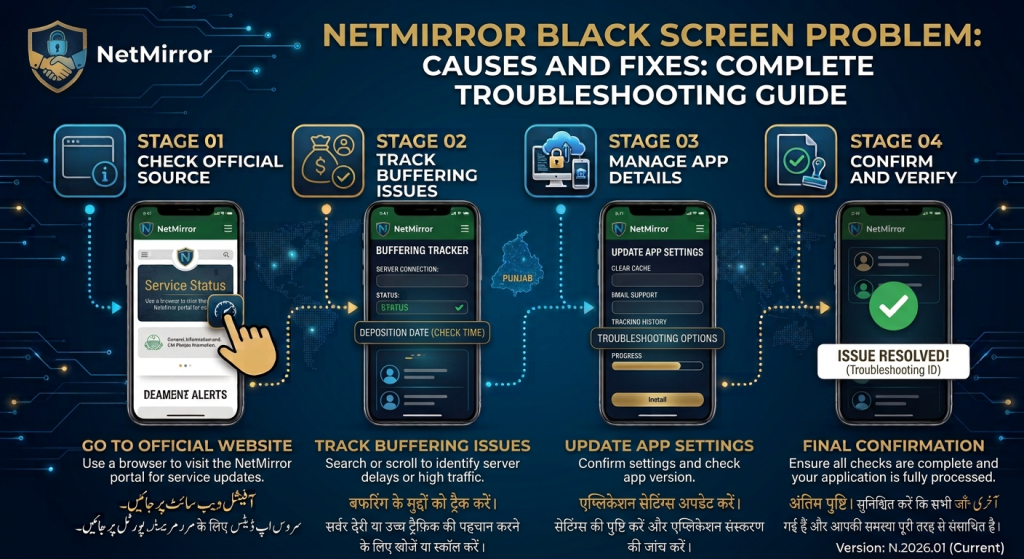
What Is the NetMirror Black Screen Problem?
The NetMirror black screen problem occurs when the application or video player opens but fails to display the expected content.
Depending on the cause, you may experience different symptoms:
- NetMirror opens with a completely black screen.
- The app interface appears, but videos remain black.
- Audio plays without showing the video.
- The screen turns black after tapping the play button.
- Videos stop displaying after a few seconds.
- The app freezes while loading a movie or episode.
Identifying when the black screen appears can help you choose the right solution.
Why Is NetMirror Showing a Black Screen?
There are several possible reasons behind this problem. Understanding the cause can save time and help you avoid unnecessary changes.
1. Corrupted App Cache
NetMirror stores temporary files to help the application load content more quickly. However, these files can sometimes become corrupted.
A damaged cache may cause loading problems, freezing, or playback errors.
2. Outdated NetMirror Version
An older version of an application may contain bugs or compatibility problems.
If the black screen started after an update to your Android device or the app’s playback system, version compatibility may be one possible cause.
3. Weak or Unstable Internet Connection
NetMirror may need a stable internet connection to load its interface and video streams.
If your Wi-Fi or mobile data connection is interrupted, the player may fail to display the video correctly.
4. Video Player or Decoder Problem
A video player uses software and device hardware to display video frames.
Sometimes, a particular video format or decoder may not work properly with your device. This can result in a black screen even when audio continues playing.
5. Temporary Server Problem
The problem may not be related to your phone at all.
If a content source or streaming server is temporarily unavailable, a video may fail to load. This is more likely when only certain titles are affected.
6. Low Device Storage or Memory
When your phone has very little free storage or available memory, applications may become slow or unstable.
This can affect video playback and prevent the app from working normally.
7. Android Compatibility Issues
Older Android versions or device-specific software problems may affect application performance.
If NetMirror started showing a black screen after a system update, compatibility could be worth investigating.
How to Fix NetMirror Black Screen Problem
Try the following solutions one by one. After each step, reopen NetMirror and check whether the video displays correctly.
Fix 1: Restart NetMirror
A temporary application glitch may prevent the video player from loading correctly.
Follow these steps:
- Close NetMirror completely.
- Open your phone’s recent apps screen.
- Remove NetMirror from the recent apps list.
- Wait a few seconds.
- Open the application again.
- Play the video to check whether the issue is resolved.
If the screen remains black, continue with the next solution.
Fix 2: Check Your Internet Connection
A weak internet connection can interrupt video loading.
Try these steps:
- Open a web browser on your phone.
- Visit a few websites to check connectivity.
- Switch from Wi-Fi to mobile data, or vice versa.
- Restart your Wi-Fi router if necessary.
- Reopen NetMirror and test playback.
If other apps also have connection problems, your internet connection may be the main cause.
Fix 3: Clear NetMirror App Cache
Clearing the cache is one of the first troubleshooting steps worth trying on Android.
Follow these instructions:
- Open your phone’s Settings.
- Select Apps or App Management.
- Find and tap NetMirror.
- Open Storage or Storage Usage.
- Select Clear Cache.
- Reopen NetMirror and test a video.
Important: Choose Clear Cache first. Clear Data is a different option that may remove saved settings or login information.
Fix 4: Restart Your Android Phone
A device restart can resolve temporary software and memory problems.
To restart your phone:
- Press and hold the Power button.
- Select Restart.
- Wait for the device to turn on.
- Open NetMirror again.
- Check whether the black screen has disappeared.
This simple step can help when an application becomes temporarily unresponsive.
Fix 5: Check for a Newer App Version
An outdated application may contain playback or compatibility bugs.
If a newer version is available from a source you can independently verify as trustworthy, review its release information before updating.
Before installing an APK:
- Verify the source.
- Check the file and app details.
- Avoid unknown download buttons and suspicious redirects.
- Review requested permissions.
- Keep Google Play Protect enabled.
Do not install modified or unknown APK files simply because a website claims they fix the black screen.
Fix 6: Try Another Video
Sometimes, the issue affects only one particular video or content source.
To identify the problem:
- Return to the NetMirror home screen.
- Select another available video.
- Start playback.
- Check whether the new video displays normally.
If other videos work, the problem may be related to the original content source rather than your phone.
Fix 7: Check Available Device Storage
Low storage can affect application performance.
Try the following:
- Open Android Settings.
- Select Storage.
- Check how much free space is available.
- Remove unnecessary files or unused applications.
- Restart your phone.
- Test NetMirror again.
Avoid deleting important personal files without making a backup.
Fix 8: Check Video Player Settings
If the black screen appears only during playback, the video player may be having a rendering or decoding problem.
If NetMirror provides playback settings, check whether it offers a different supported decoder or video-rendering option.
Some players provide hardware and software decoding choices.
You can try an alternative option if it is available, then restart playback.
Note: Not every NetMirror version or device provides these settings. Do not change advanced Android developer settings without understanding their purpose.
Fix 9: Update Your Android System
An outdated operating system may sometimes cause compatibility issues with applications.
To check for updates:
- Open Settings.
- Select System or Software Update.
- Tap Check for Updates.
- Follow the instructions if an update is available.
- Restart your phone after installation.
The exact menu names may differ depending on your Android device.
Fix 10: Reinstall the Application if Necessary
If none of the previous solutions works, the installation itself may be damaged.
Before reinstalling:
- Make sure you understand where the application came from.
- Save any information you need.
- Uninstall the existing application.
- Restart your phone.
- Only reinstall it from a source you can independently verify as trustworthy.
- Check playback again.
Reinstalling may remove saved settings and application data. Avoid downloading APK files from unknown websites.
NetMirror Black Screen With Sound: How to Fix It
One common variation of this problem occurs when audio plays normally, but the video remains black.
This may indicate a video-rendering or decoder issue.
Try these steps:
- Restart the video.
- Test another available video.
- Clear the app cache.
- Restart your Android device.
- Check whether a different player or decoder option is available.
- Update the application only from a trustworthy source.
If only one video has this problem, the issue may be specific to that content source.
NetMirror Black Screen on Android TV
If you are using NetMirror on an Android TV or TV box, the problem may be related to device compatibility or playback settings.
Try these solutions:
- Restart your Android TV.
- Check your Wi-Fi connection.
- Clear the application’s cache.
- Check available storage.
- Update your TV’s system software.
- Test another video.
- Check whether the installed app version supports your device.
If other streaming applications also show a black screen, investigate the TV’s display or software settings.
When Is the Problem Related to NetMirror’s Server?
Sometimes, none of the troubleshooting steps works because the issue is on the service side.
Possible signs include:
- Several videos fail to load.
- The app works on one occasion but not another.
- Other users report similar playback problems.
- Your internet connection and other applications work normally.
In this situation, repeatedly clearing data or reinstalling the application may not help.
Wait and test again later. Avoid installing multiple unofficial versions in an attempt to bypass a server problem.
Frequently Asked Questions (FAQs)
1. Why Is NetMirror Showing a Black Screen?
NetMirror may show a black screen because of corrupted cache, an outdated app version, unstable internet, decoder compatibility problems, or a temporary content-source issue.
2. Why Can I Hear Sound but Cannot See the Video?
This may happen when the audio works but the video-rendering process fails. Try restarting playback, clearing the cache, testing another video, and checking available player settings.
3. How Do I Clear NetMirror Cache on Android?
Go to Settings, select Apps, open NetMirror, choose Storage, and tap Clear Cache. Menu names may differ between Android devices.
4. Can an Outdated NetMirror Version Cause a Black Screen?
Yes. An outdated version may contain bugs or compatibility issues. Check for a trustworthy update before considering reinstallation.
5. Why Does NetMirror Show a Black Screen on Only One Video?
The problem may be related to that particular video, its format, or its content source. Try another available title to identify whether the issue is limited to one video.
6. Will Reinstalling NetMirror Fix the Black Screen?
Reinstalling may help if the application installation is damaged. However, it will not necessarily fix server-side problems or device compatibility issues.
7. Does NetMirror Black Screen Problem Occur on All Android Phones?
No. The issue may depend on the Android version, device hardware, application version, or video format.
8. What Should I Do If None of the Fixes Work?
If the problem continues, record when the black screen appears, check whether other videos work, and contact the application’s provider through a verifiable support channel if one is available.
Final Words
The NetMirror Black Screen Problem can occur for different reasons, including corrupted cache files, unstable internet, outdated application versions, decoder issues, and temporary server problems.
Start with simple solutions such as restarting the application, checking your connection, clearing the cache, and restarting your device. If the issue continues, test another video and review the available player settings.
Avoid unnecessary data deletion and unknown APK downloads. Identifying the actual cause is the best way to troubleshoot the problem without creating additional issues.